
Do you want to connect your WordPress to Mailercloud to grow your email list and improve your marketing efforts?
If you run a website, you want to engage your visitors, turn them into leads, and keep in touch with them through email. Mailercloud helps you do just that.
Mailercloud is an email marketing platform that helps businesses create, send, and automate email campaigns to engage their audience effectively. It has drag-and-drop email builders, automated workflows, audience segmentation, and real-time analytics to track performance. Mailercloud also supports SMS marketing and transactional emails, making it a versatile choice for multi-channel communication.
By connecting WordPress to Mailercloud, you can subscribe users, leads, and email subscribers to your Mailercloud contact list and email your posts immediately after publication (or at a daily, weekly, or monthly basis) and send newsletters from your WordPress admin dashboard to your contact list.
In this guide, we’ll show you how to integrate your WordPress website with Mailercloud using MailOptin.
Getting your Mailercloud API Credentials
To get the API Key of your Mailercloud account, follow the steps below.
Log in to your account, navigate to Account >> integrations >> API Key, and click the Create API Key button.
Enter MailOptin as the API name and submit.

You should see your API key displayed. Copy it to your clipboard.
Integrating the Mailercloud API Key with MailOptin
Now that you have your Mailercloud API key, the next step is to implement it in your WordPress site using the MailOptin plugin.
If you haven’t done so already, install and activate the MailOptin plugin on your WordPress website. Once the plugin is active, go to your WordPress dashboard and navigate to MailOptin > Integrations.

Open the Mailercloud Connection section and enter your API key.
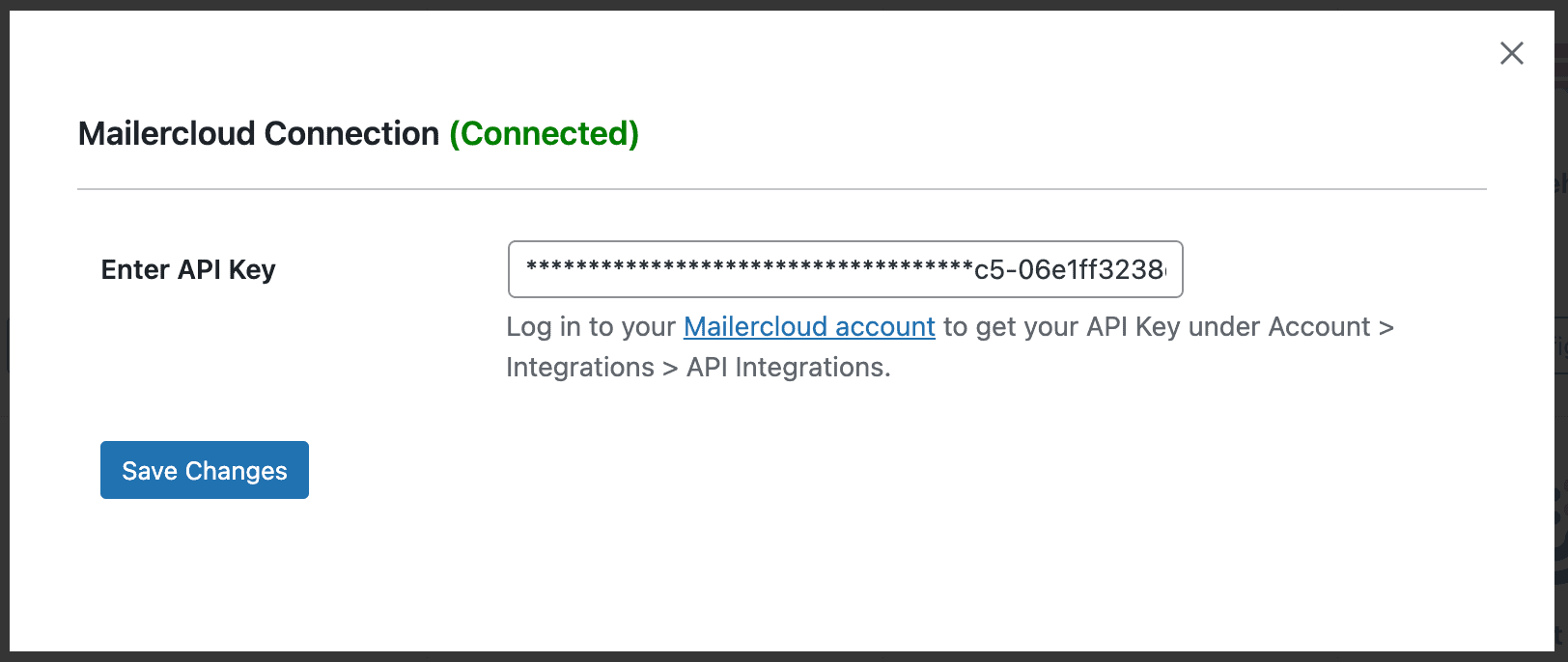
Finally, hit the “Save Changes” button.
Important Note
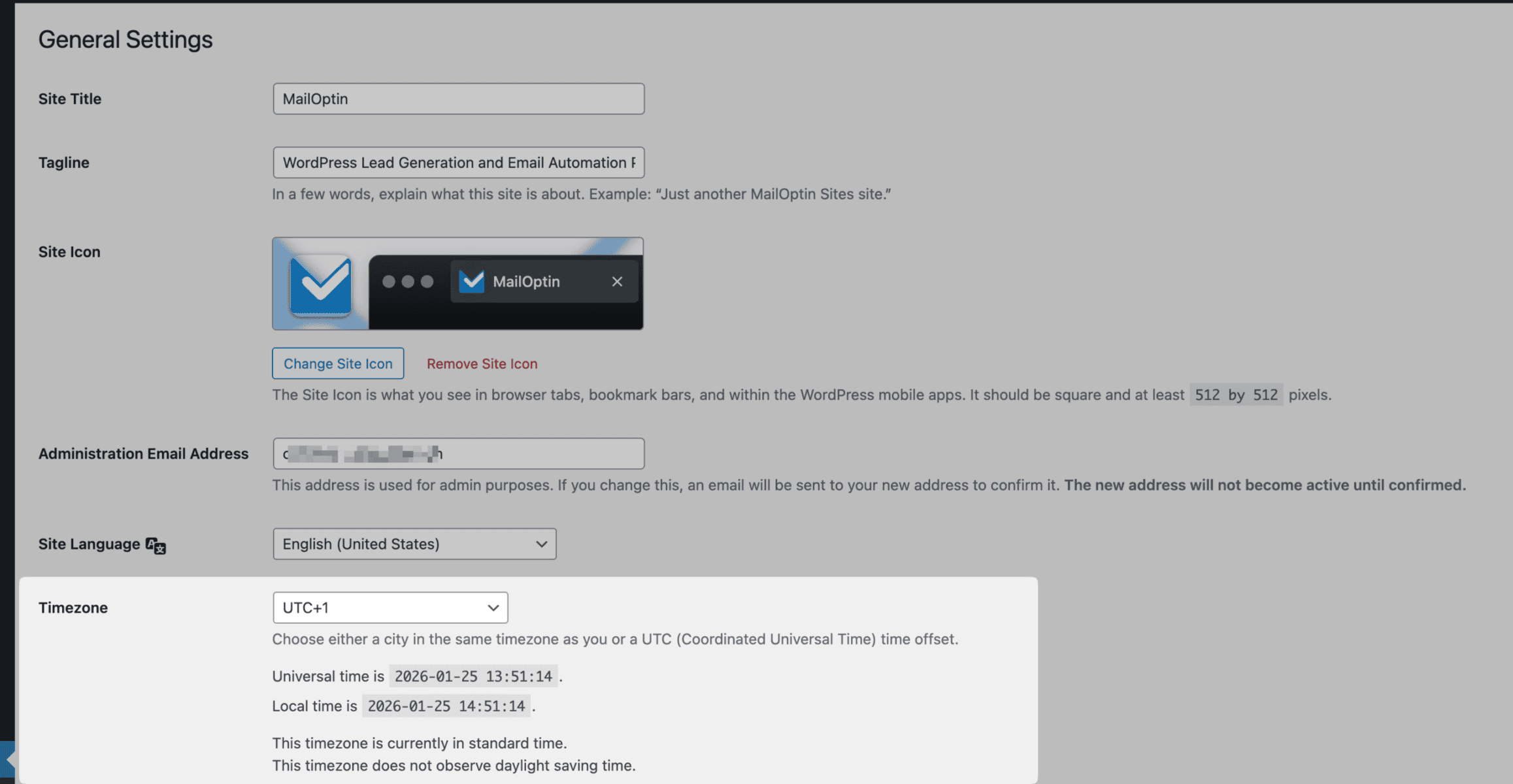
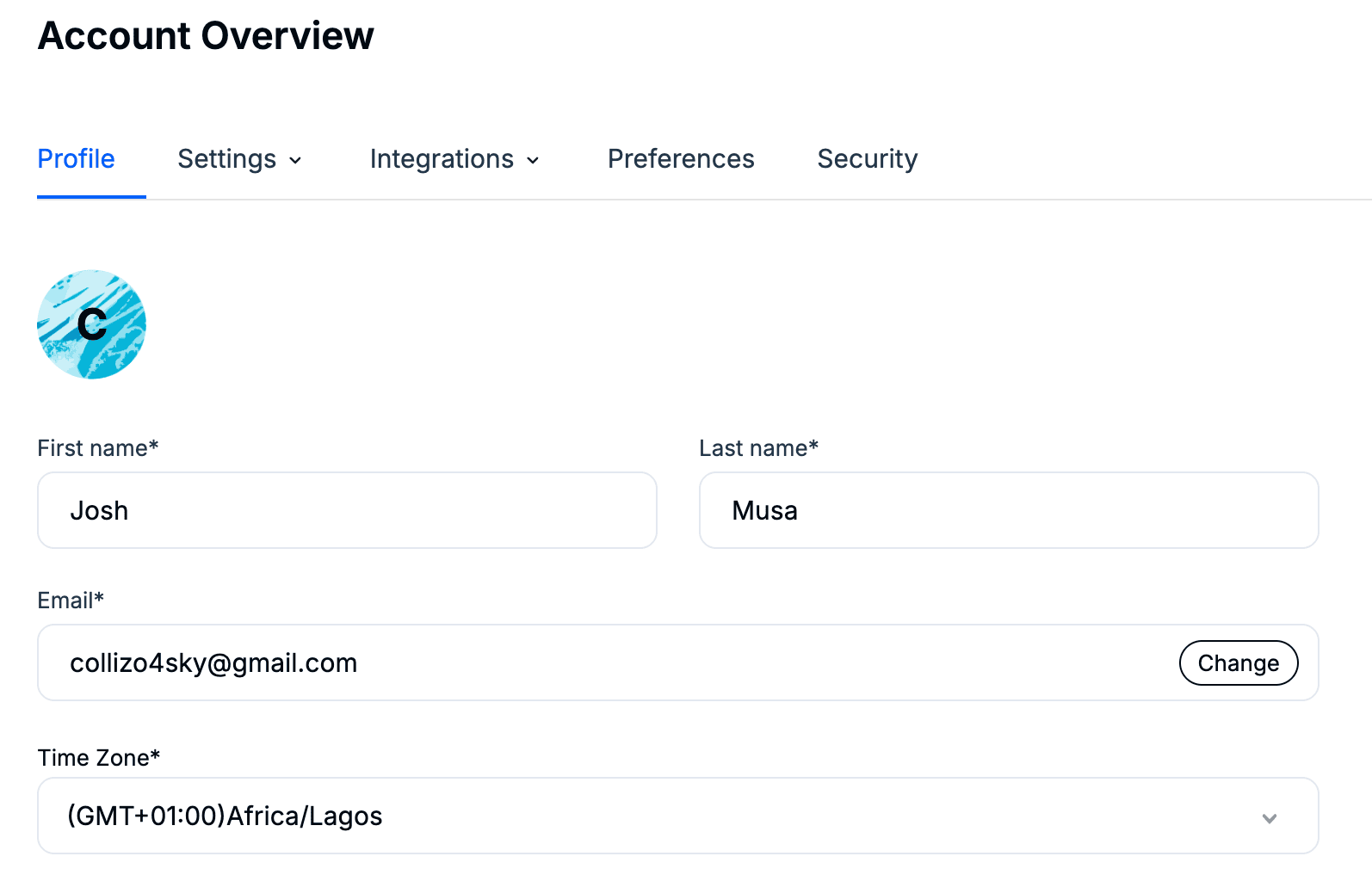
If you intend to use MailOptin to email your contacts or list subscribers in Mailercloud whenever you publish a new post, send email digests of articles, or broadcasts from your WordPress admin dashboard, the timezone set on your website must be the same as your Mailercloud account.
What’s Next?
Now that the connection is active, you can start creating email opt-in forms, pop-ups, slide-ins, and notification bars connected to Mailercloud and sending new post notifications and email digests to your contacts in Mailercloud.
We hope this article has helped you learn how to connect WordPress to Mailercloud.