
Do you want to connect your WordPress to Copper CRM to save captured leads from your website and improve your marketing efforts?
Copper CRM is built for Google Workspace users to simplify managing contacts, deals, and projects directly from Gmail and Google Calendar. It automates data entry, integrates seamlessly with productivity apps, and provides visual pipelines to track sales and service processes.
By connecting WordPress to Copper CRM, you can subscribe users, leads, and email subscribers from your website to the People or Leads list in your Copper account.
In this guide, we’ll show you how to integrate your WordPress website with Copper CRM using MailOptin.
Integrating WordPress with Copper In MailOptin
If you haven’t done so already, install and activate the MailOptin plugin on your WordPress website. Once the plugin is active, go to your WordPress dashboard and navigate to MailOptin > Integrations.

Open the Copper CRM Connection section and click the “Authorize” button to get started connecting your WordPress website with your Copper account.
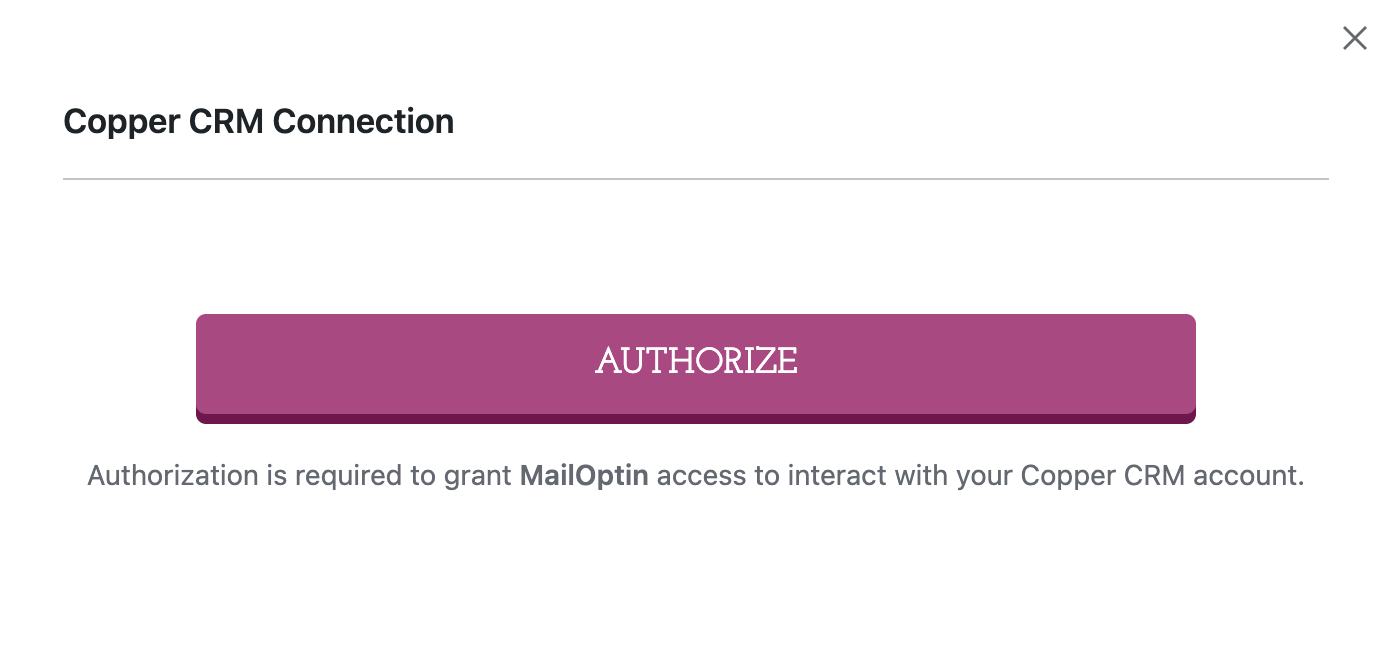
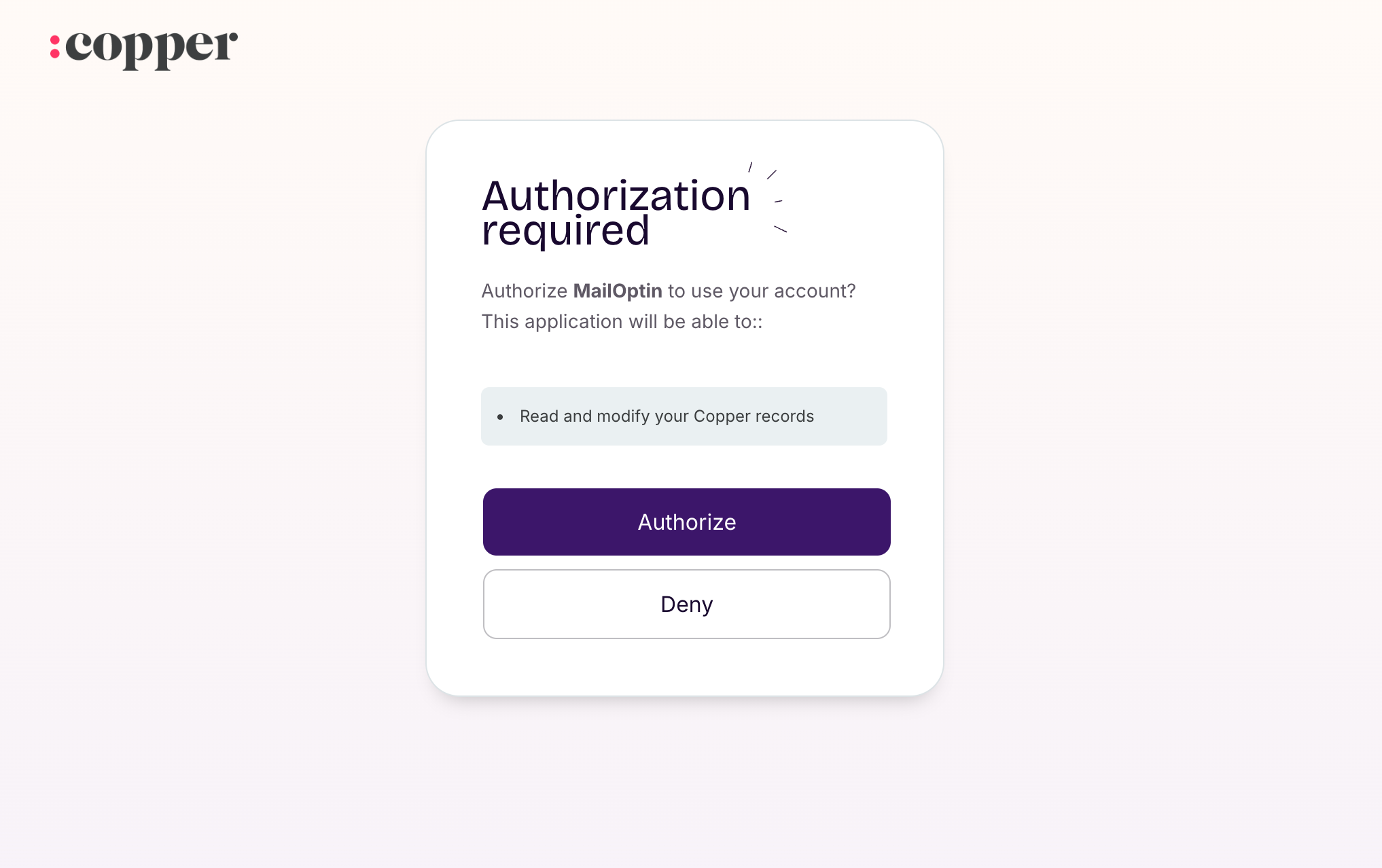
After clicking the button, you will be redirected to the Copper website where you will be prompted to allow MailOptin access to your Copper account. Click the “Authorize” button.
You will be redirected back to your WordPress admin dashboard, with the MailOptin connection now successful.
What’s Next?
Now that the Copper connection in MailOptin is active, you can start creating lead capture forms, pop-ups, slide-ins, and notification bars that connect to Copper CRM.
We hope this article has helped you learn how to connect WordPress to Copper CRM.