
Do you want to connect your WordPress to Encharge to grow your email list and improve your marketing efforts?
If you run a website, you probably want to engage your visitors, turn them into leads, and keep in touch with them through email. Encharge is a powerful marketing automation platform that helps you do just that. It lets you create email workflows, track how visitors behave on your site, and sync with CRM and other platforms.
By connecting WordPress to Encharge, you can subscribe users, leads, and email subscribers to your Encharge contact list. This means less manual work for you—and more time to focus on growing your business.
In this guide, we’ll show you how to connect your WordPress website to Encharge using MailOptin.
Getting your Encharge API Credentials
To get the API Key of your Encharge account, follow the steps below.
- Log in to your account.
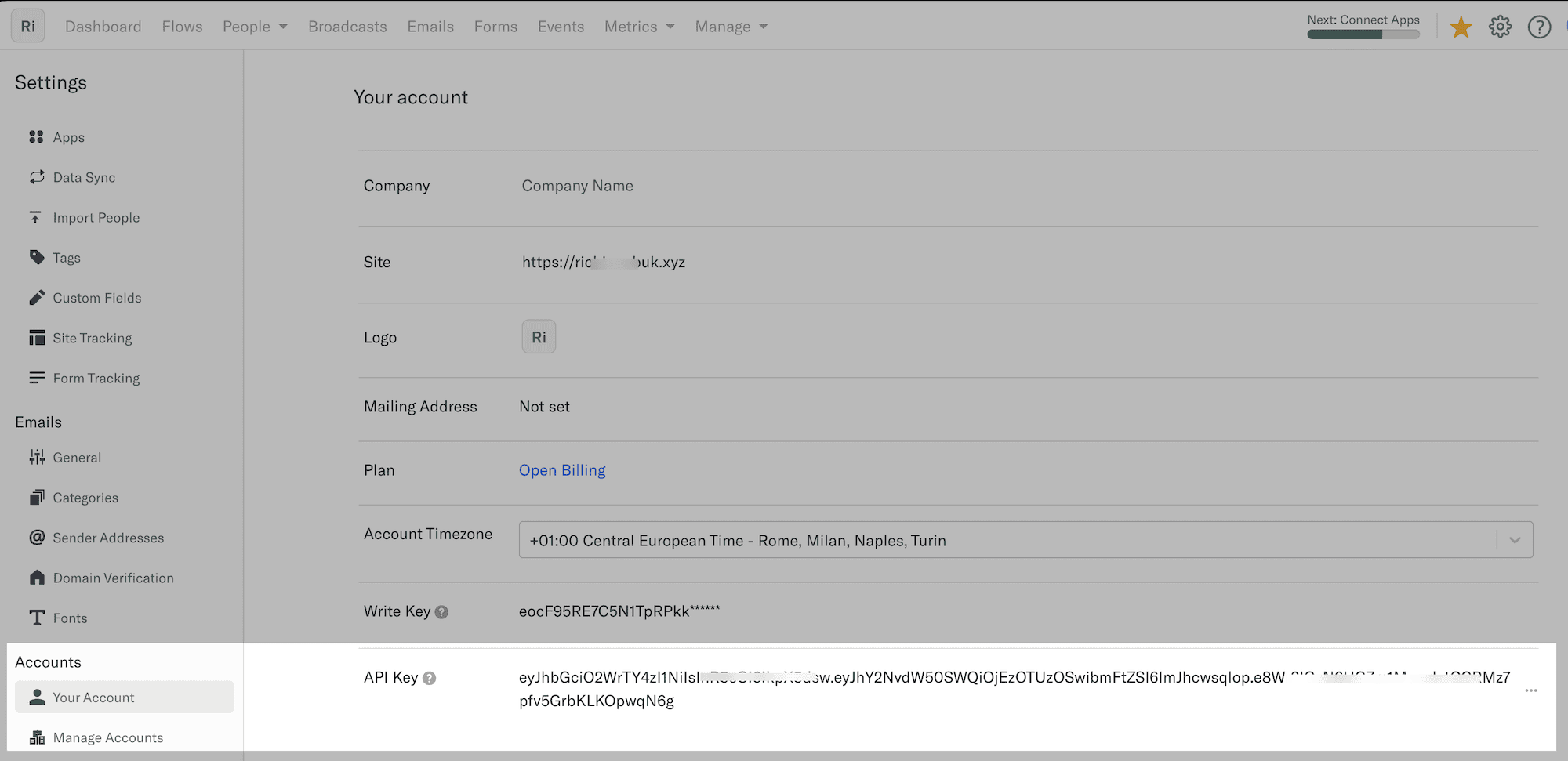
- Navigate to Settings > Your Account >> Create API key.
- You should see your API key displayed. Copy it to your clipboard.
Integrating the API Key with MailOptin
Now that you have your Encharge API key, the next step is to add it to your WordPress site using the MailOptin plugin.
If you haven’t done so already, install and activate the MailOptin plugin on your WordPress website. Once the plugin is active, go to your WordPress dashboard and navigate to MailOptin > Integrations.

Open the Encharge Connection section and enter your API key.
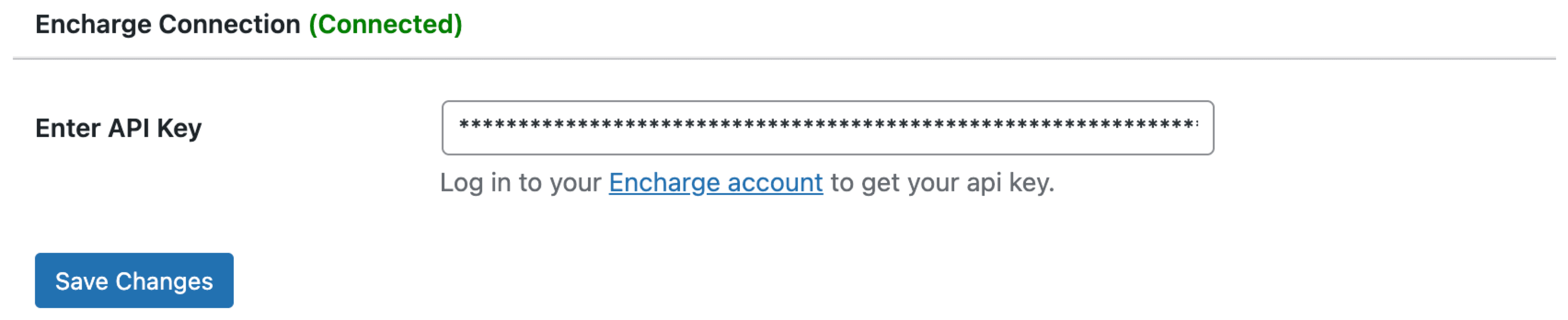
Finally, hit the “Save Changes” button.
What’s Next?
Now that the connection is active, you can start creating email opt-in forms, pop-ups, slide-ins, and notification bars linked to Encharged MailOptin. Each time someone fills out a form, their information will be automatically sent to Encharge. This process simplifies building relationships with your audience and helps convert visitors into customers.
We hope this article has helped you learn how to connect WordPress to Encharge so you can start syncing your users, leads, and subscribers to your People or contact list in Encharge.