Would you like to receive automated website SEO reports directly in your inbox?
If you’ve been doing SEO for a while, you already know how repetitive reporting can become. You log in to check traffic. Then you review keyword rankings. Then you look at the indexing status. Before you know it, you’ve spent more time gathering data than actually improving your website.
The good news? Many parts of SEO can be automated, and reporting is one of them. Instead of manually checking your website analytics every few days and wondering whether performance has improved, you can have detailed SEO reports of your WordPress website delivered to you automatically on a schedule that works for you. No constant logging in. No manual data collection. No guesswork.
In this article, you’ll learn what an automated website SEO report is, why it matters, and how to set one up using the CrawlWP WordPress SEO plugin so the right data comes straight to your inbox.
What Is A Website SEO Report?

A website SEO report is a scheduled SEO performance update that is generated and sent directly to your email, so you don’t have to create it manually each time. Once it is set up, the report automatically pulls data from your connected platforms (eg, Google Search Console, Bing Webmaster Tools, Google Analytics, etc.). It delivers it to you daily, weekly, or monthly.
Think of it as putting your reporting process on autopilot. These reports give you a clear snapshot of your website’s SEO performance and index status for a specific time period. Instead of logging in to check traffic, rankings, and impressions one by one, everything is organized and delivered to your inbox.
Benefits of Automated Website SEO Reports
Now that you understand what an automated website SEO report is, let’s talk about its benefits.
1. Save Hours of Work: Manually preparing SEO reports is time-consuming, but automated reports eliminate this. Once set up, data is collected and delivered automatically, freeing time to improve rankings, create content, or plan campaigns.
2. You Get Clear Performance Snapshots: Automated website SEO report provides a focused overview of your website’s performance within a specific time period. Instead of checking metrics randomly, you receive structured updates that highlight traffic trends, keyword movements, indexing changes, and conversions.
3. Make Better Decisions: When SEO performance data arrives regularly, you start thinking more strategically. Instead of reacting emotionally to daily fluctuations, you evaluate performance based on consistent reporting periods. This leads to more confident decisions about content updates, link-building efforts, and technical improvements.
4. Customizable Frequency: You can decide how often your reports are sent, whether that is daily, weekly, or monthly.
In the end, automated SEO email reports do more than save time.
Getting Automated WordPress SEO Reports By Email
For WordPress users, the best way to receive automated SEO reports by email is by using the CrawlWP WordPress SEO plugin. It helps you monitor how search engines crawl and index your content and provides insights into your website’s performance in search engines (Google, Bing, Yandex, etc.), as well as the index status of your WordPress posts and pages, all visible in your WordPress dashboard.

In this section, I’ll walk you through how to set up CrawlWP so you can start getting automated SEO reports of your WordPress website by email without extra manual work.
Let’s go through the setup process step by step.
Step 1: Install and Activate CrawlWP
To begin, visit the CrawlWP pricing page and purchase the plugin. Download the plugin ZIP file to your computer.
Next, log in to your WordPress dashboard. From the left menu, go to Plugins > Add New, then click Upload Plugin at the top of the page.
Select the ZIP file you just downloaded and click Install Now. WordPress will handle the installation for you.
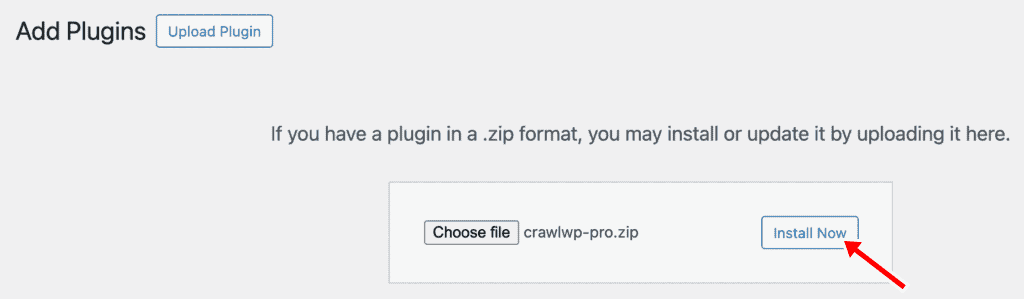
Once the installation is complete, click Activate to enable CrawlWP on your website.
After activation, the next step is to connect your site with the required search APIs. Follow the setup instructions to integrate WordPress with the Google and Bing Search APIs. These integrations allow CrawlWP to access SEO performance and indexing data.
Step 2: Enable Email Reporting
To do this, go to CrawlWP > Settings > Advanced, then locate the Email Reports section. This is where you control how and when your reports are sent.
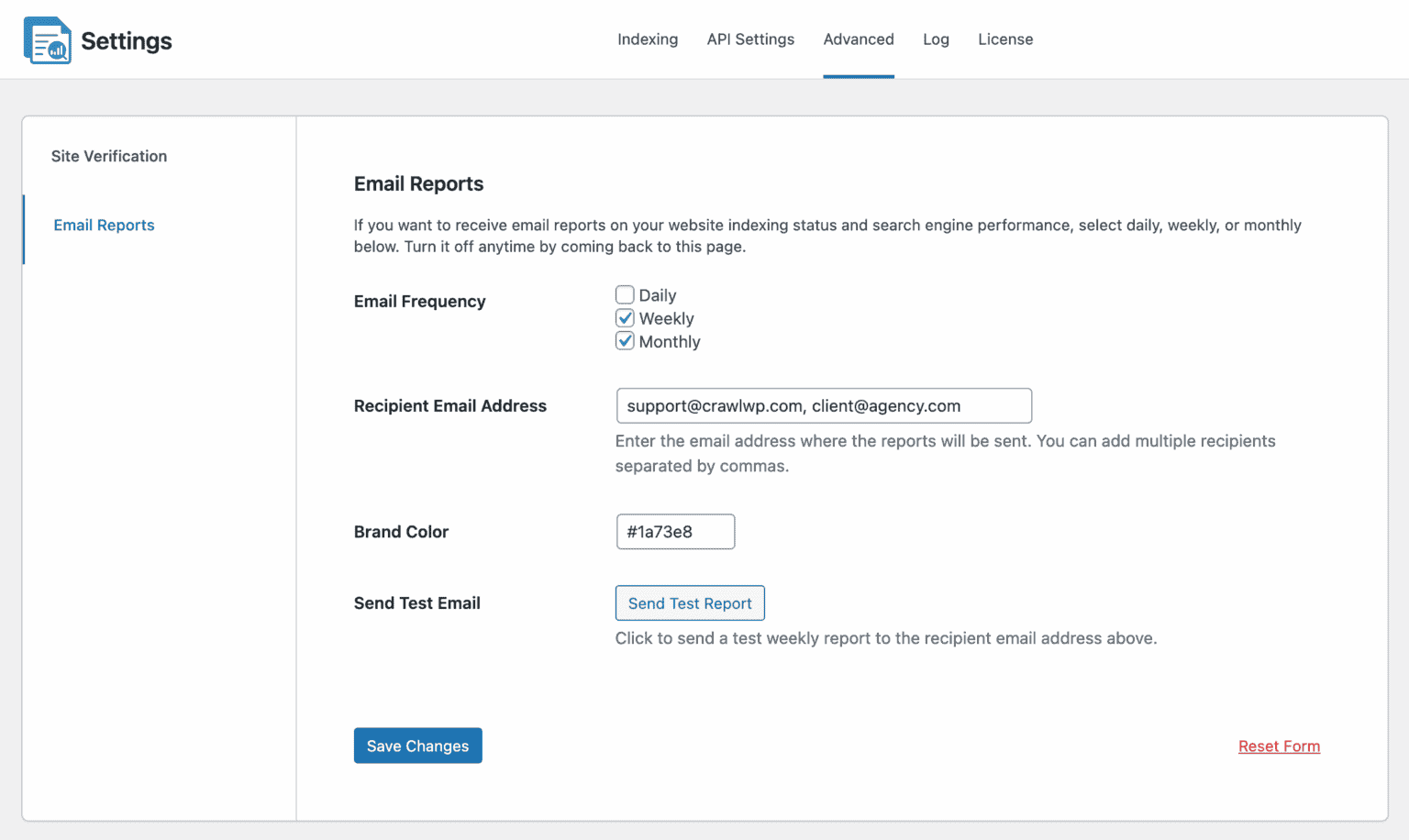
Let’s go through each setting so you’ll be able to configure it properly.
Email Frequency: This option lets you choose how often you receive your SEO reports. CrawlWP lets you select daily, weekly, monthly, or combine options, depending on your preference. For example, you might choose weekly updates for regular monitoring and monthly reports for broader performance reviews. If you do not select any frequency, email reporting will remain disabled.
Recipient Email Address: In this field, you are to enter the email address that should receive the reports. This could be your own email or a client’s. If you need to send the report to multiple people, separate their email addresses with commas. Everyone listed will receive the report based on the selected schedule.
Brand Color: With this field, you can adjust the brand color of the email report to match your website or company identity. This is especially useful if you are sending reports to clients and want them to reflect your branding.
Send a Test Report: Before finalizing everything, click on the Send Test Report button. This allows you to preview how the report looks and review the data included. It is always a good idea to test first to make sure everything appears as expected.
Once you have configured all your preferences, scroll down and click Save Changes to apply your settings.
After this step, the automated SEO reports of your WordPress site will start arriving in your inbox according to the schedule you selected.
Step 3: Understanding and Interpreting Your SEO Email Reports
Once the WordPress SEO reports for your website start arriving in your inbox, the next step is understanding the report information. A report is only useful if you understand what the numbers mean and how they affect your website’s visibility and performance on Google, Bing, and other search engines.
CrawlWP email report provides valuable insights into your search performance and indexing status. Below, I’ll break down what each section means.
WordPress Search Performance Metrics
This section shows how your WordPress website performs in Google Search results.
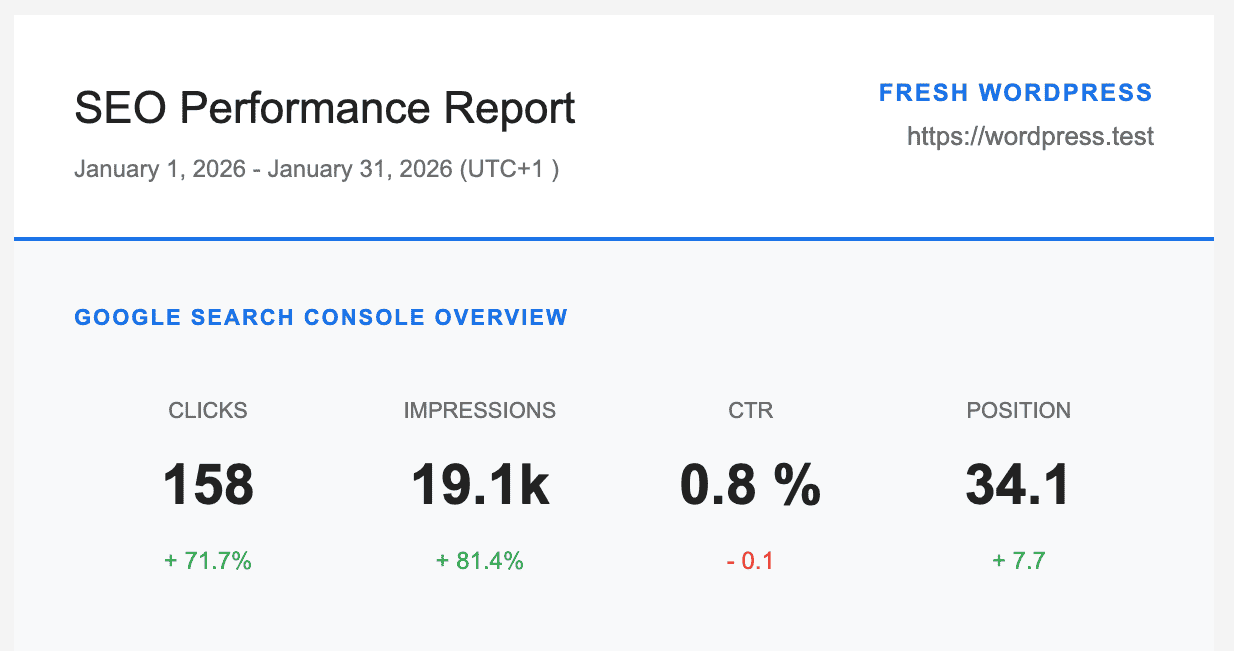
- Clicks show how many users clicked on your link from the Google results page.
- Impressions represent the number of times your WordPress website appeared in search results.
- Click-Through Rate (CTR) is the percentage of impressions that turned into clicks.
- Average Position reflects your typical ranking for the keywords your website appears for.
By analyzing these metrics, you can understand how visible your content is and how effective your titles and meta descriptions are at attracting clicks.
For instance, a high number of impressions with a low CTR may suggest that your headlines or snippets need improvement. Similarly, if your average position improves over time, it’s a clear sign that your WordPress SEO efforts are paying off.
Indexed Insights
This section shows you the following important metrics.
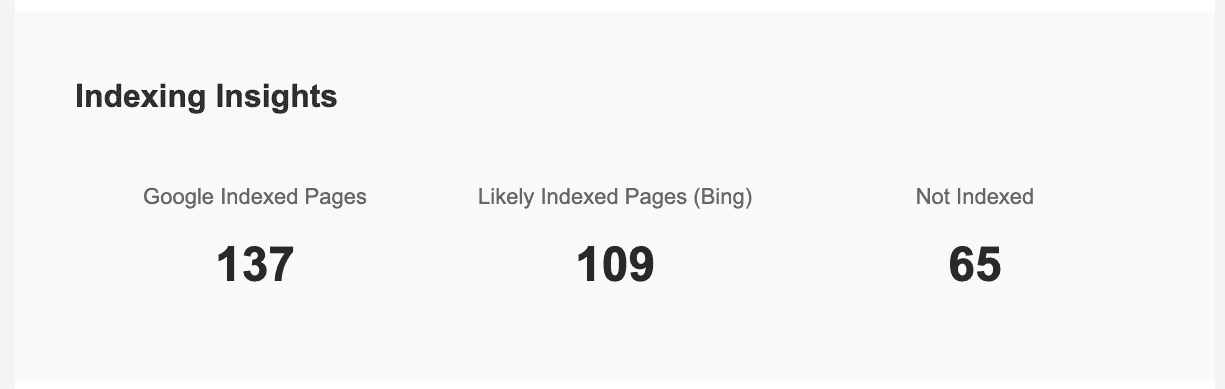
1. Number of indexed pages by Google: This shows how many of your WordPress pages have been indexed by Google. Indexed pages are eligible to appear in search results. If important pages are not indexed, they will not rank, no matter how well optimized they are. Monitoring this number helps you confirm that Google is properly discovering and indexing your content.
2. Estimated Pages Indexed by Bing: This demonstrates the number of WordPress posts and pages that Microsoft Bing has likely indexed. Although Google generates the majority of traffic for many websites, Bing remains a valuable source of visitors. Keeping an eye on Bing indexing ensures your visibility is not limited to just one search engine.
3. Pages Not Indexed by Google: This shows you the number of WordPress pages that Google has not indexed. This could happen for several reasons, such as crawl errors, technical restrictions, noindex tags, or concerns about content quality. If this number increases unexpectedly, it may signal a technical issue that needs immediate attention.
Top Keywords Your Website Is Ranking For
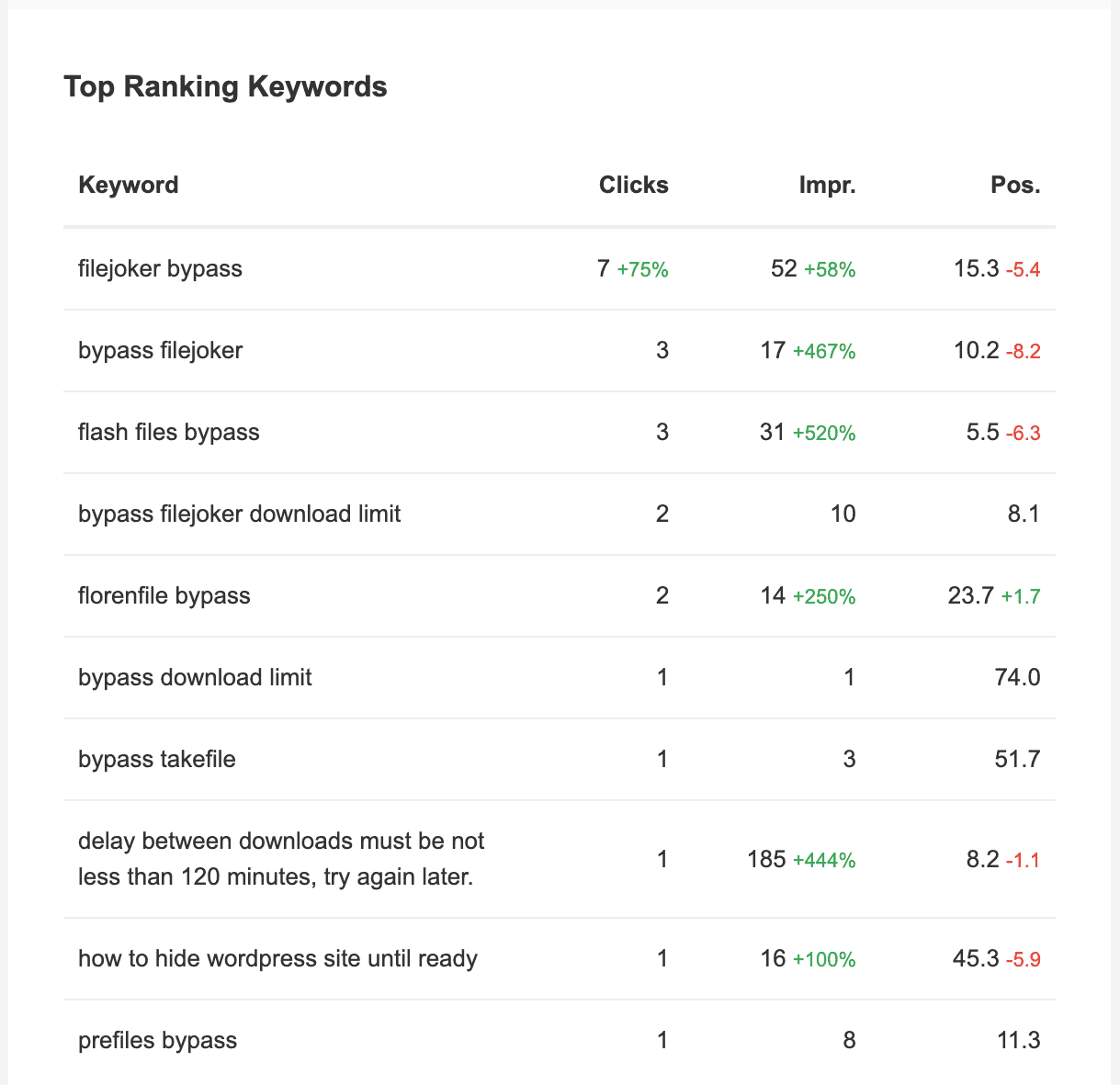
This section of the report highlights the search terms driving traffic to your website. These are the ranking keywords where your website is already appearing in search results.
Reviewing this list regularly can reveal several valuable opportunities. For example, you may notice keywords that are ranking on the second or third page of search results. With small improvements to your content, like adding more relevant information, updating headings, or optimizing meta tags, these pages have the potential to climb higher and attract more clicks.
Additionally, this section helps you identify gaps in your content strategy. If you see keywords relevant to your niche that you are not ranking for yet, you can create or optimize pages around those terms to capture more traffic.
Over time, tracking the top-ranking keywords on your WordPress website helps you make informed decisions, focus on high-potential opportunities, and improve your website’s overall search engine visibility.
Top Performing Pages on Google Search
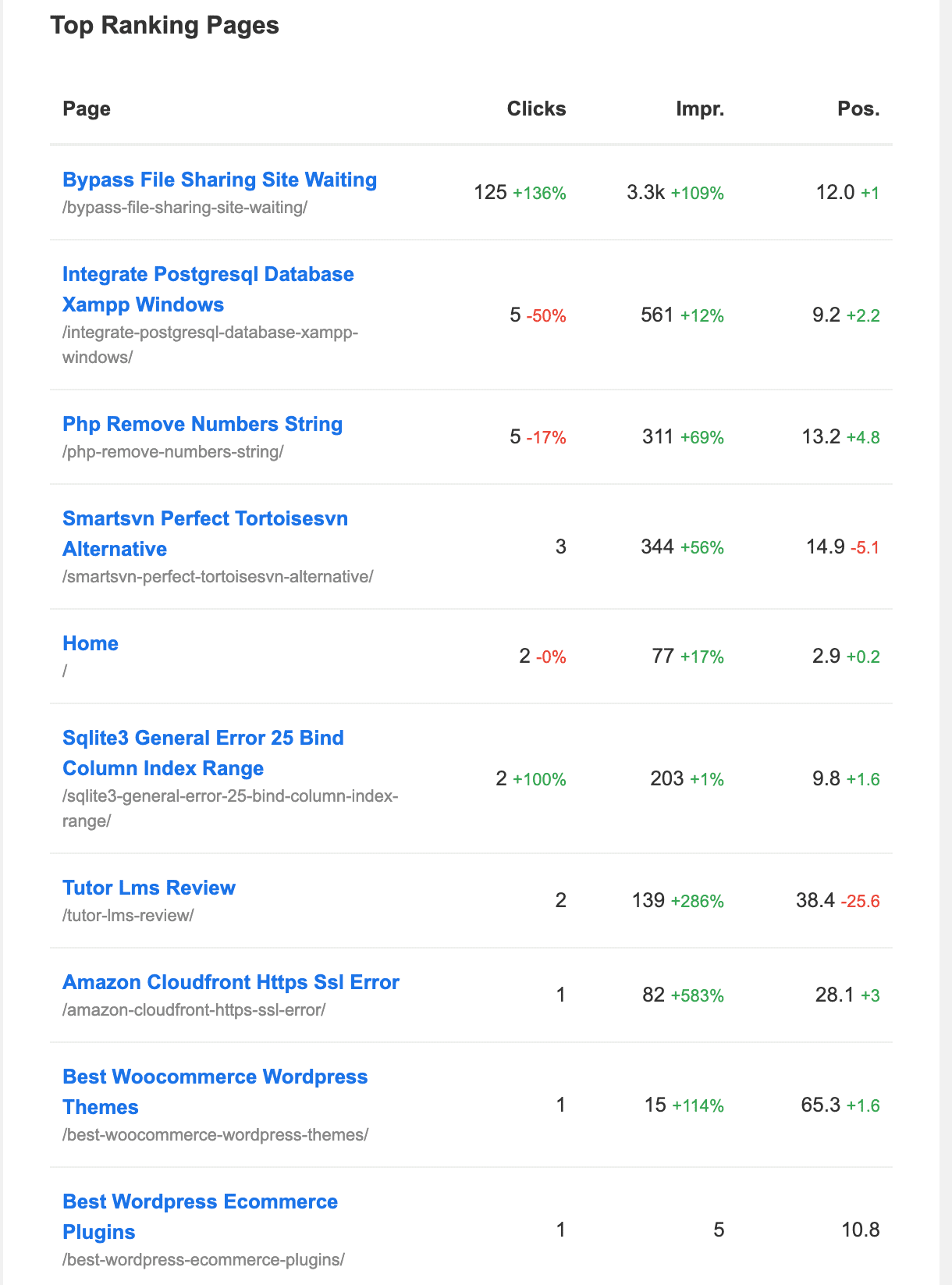
This section shows which WordPress posts and pages are generating the most impressions and clicks from Google Search. These pages are often your highest-ranking or most engaging pieces of content. Understanding why these pages perform well can help you replicate that success across other areas of your website.
Recent Movement
This section shows two important metrics: pages that were recently indexed by Google Search and pages that were recently deindexed.
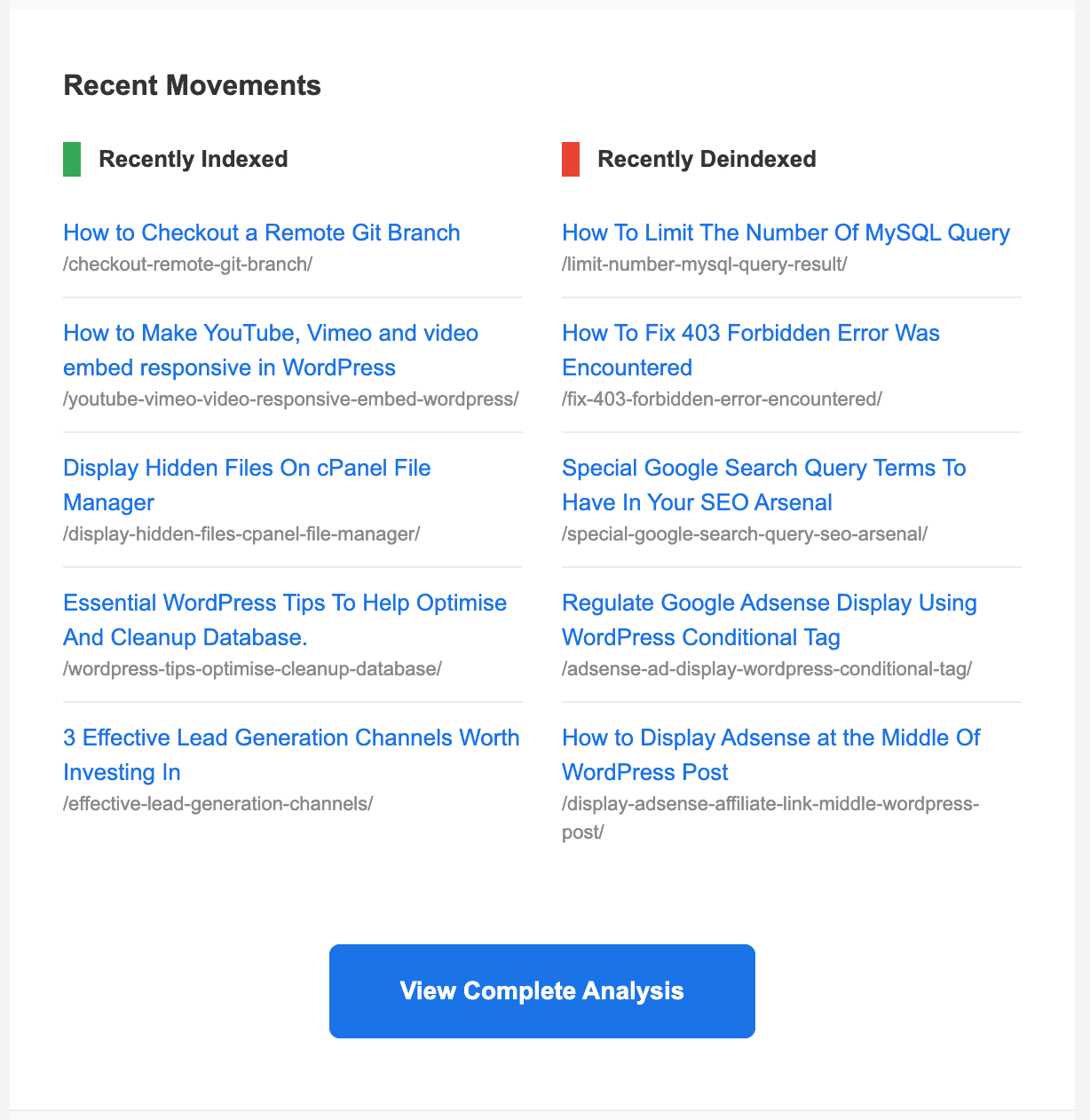
Recently Indexed Pages: Here you will find pages that Google has recently added to its index. This is a good sign, especially after publishing new content. It confirms that search engines are crawling and recognizing your updates.
Recently De-Indexed Pages: This section lists pages that have been removed from Google’s index. When a page is de-indexed, it no longer appears in search results. Sometimes this happens intentionally, but if it occurs unexpectedly, it may indicate technical issues, content problems, or indexing restrictions that require investigation.
By reviewing these sections regularly, your website SEO report becomes more than just a set of numbers. It gives you a clear snapshot of what is working, what needs improvement, and which opportunities can be acted on next.
Over time, these insights help you make informed decisions, catch issues before they affect your rankings, and maintain a healthy, visible website.
Get Your Website SEO Reports By Email Today
Setting up automated SEO Email reports for your WordPress website doesn’t have to be complicated. With CrawlWP, you can turn what used to be a manual, time-consuming task into a fully automated system that keeps you informed and in control.
From tracking impressions, clicks, and keyword rankings to monitoring indexed and de-indexed pages, CrawlWP automated reports give you a clear overview of your site’s performance at a glance.
More importantly, these reports empower you to take action. You can quickly identify opportunities to improve rankings, fix indexing issues, update underperforming content, and double down on what’s already working. Instead of reacting late to problems, you stay proactive and strategic.
Set it up today and let the data come to you!
FAQs About Automated SEO Reports for Websites
Question 1: How often should I receive SEO reports?
Answer: It depends on your goals. Daily reports are useful for high-traffic or fast-changing sites, weekly reports work well for most businesses, and monthly reports are ideal for monitoring long-term trends.
Question 2: Will automated reports replace checking analytics platforms?
Answer: Not entirely. Reports provide a summary and highlight trends, but a detailed data exploration may still require logging in to your WordPress website and viewing the SEO Indexing and SEO Stats pages in CrawlWP to see the full SEO picture of your website.
Question 3: Can I send reports to multiple email addresses?
Answer: Yes, you can. CrawlWP allows you to add multiple recipients within the report settings, so you can easily share SEO performance updates with your team, clients, or stakeholders at the same time.