
Your latest blog post in WordPress just went live, but will your email subscribers in Sender.net know about it?
If you’re manually sending email newsletters every time you publish new WordPress articles, you’re wasting precious time that could be spent creating more content. And if you’re not sending notifications at all, you’re missing out on immediate traffic and engagement from your most loyal readers.
The good news? You can automate this entire process.
By connecting WordPress to your Sender mailing list, every new post will automatically trigger an email to your subscribers.
In this tutorial, I’ll show you exactly how to set up automatic post notifications to Sender email marketing platform using the MailOptin plugin. In just a few minutes, you’ll have a system that keeps your Sender subscribers instantly informed whenever you hit publish in WordPress.
Step 1: Install and Activate MailOptin
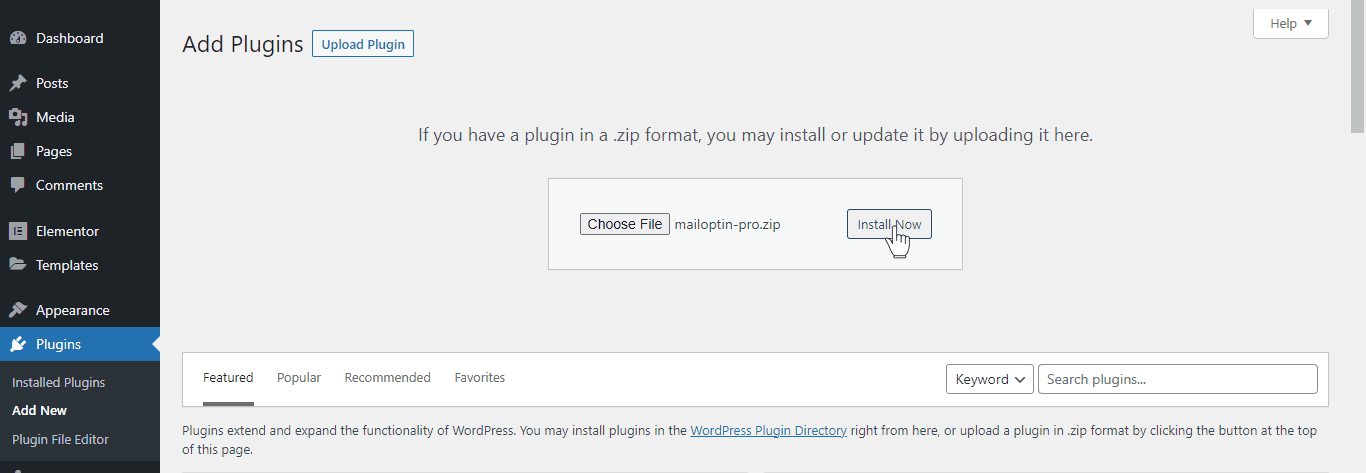
To set up new post notifications automation in WordPress, first purchase a MailOptin license. Next, log in to your WordPress admin dashboard, go to the Plugins page, click the Add New button and Upload Plugin.
Then, click Choose File to select the downloaded plugin zip file. Click Install Now. After installing the plugin, activate it by clicking ‘Activate Plugin’.
Step 2: Connect WordPress to Sender via MailOptin
After installing the MailOptin plugin, the next step is to connect MailOptin to your Sender.net account.
Log in to your Sender account. From the left-hand panel in your account, go to Account Settings > API access tokens, which will open the API tab.
Click the “Create API token” button, select the duration for which the token will be valid, and then submit the form. You should now see your created API token.
Next, go to your WordPress dashboard and navigate to MailOptin > Integrations. Then, open the Sender Connection section and enter the API access token you created.

Finally, hit the “Save Changes” button.
Step 3: Create the WordPress New Post Notification to Sender Automation
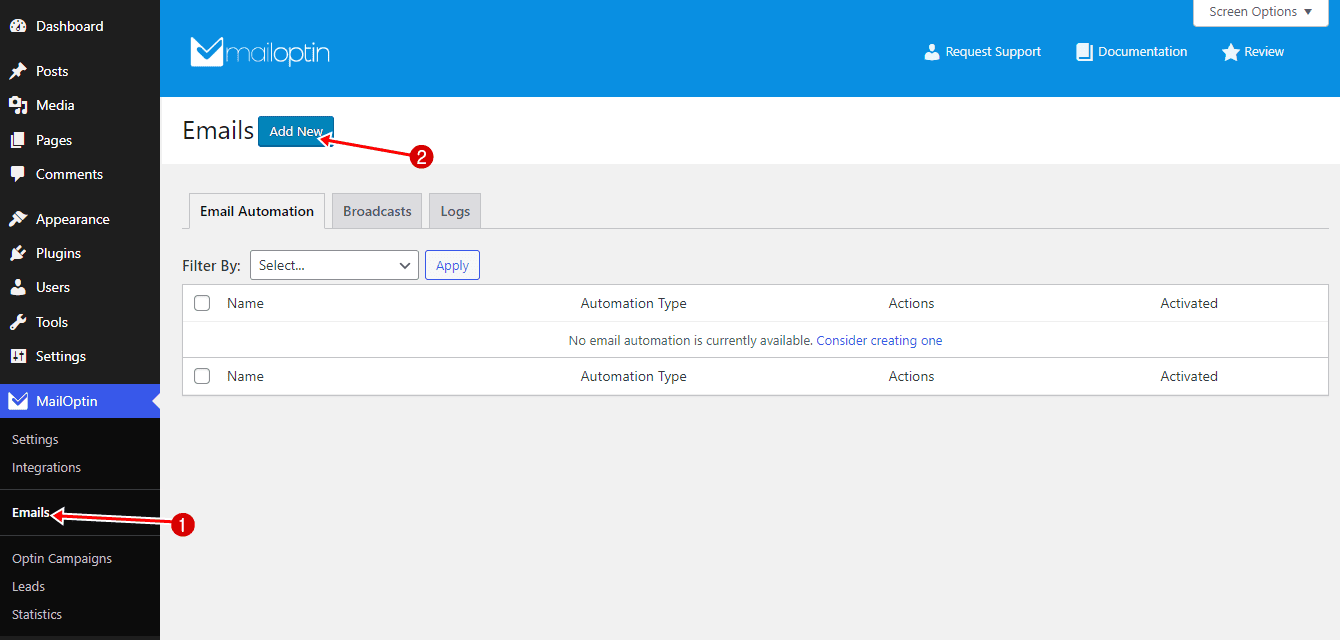
To set up the email automation that automatically emails your Sender mailing lists whenever a new post is published in WordPress, go to MailOptin >Email > Add New.
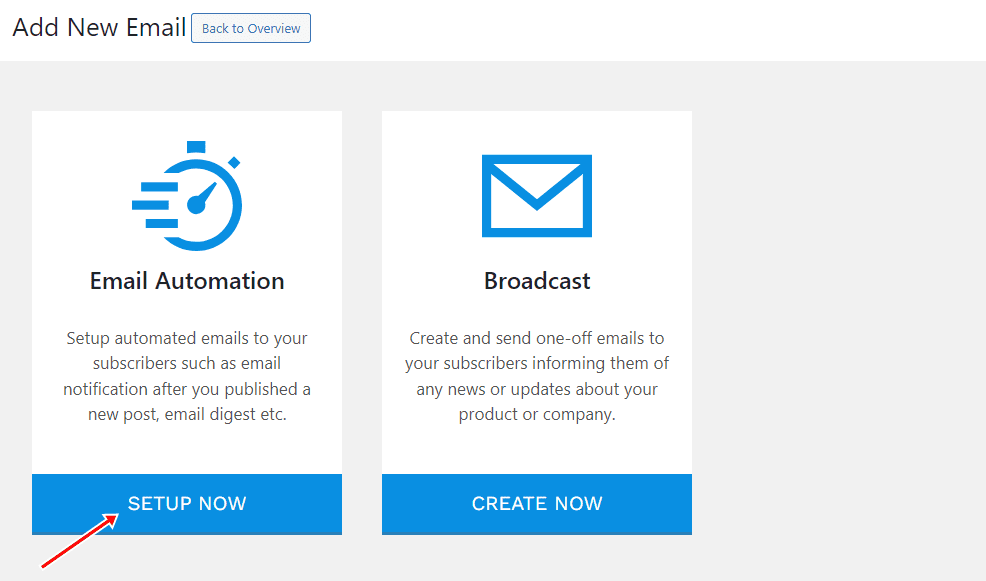
Locate the Email Automation card and click the Setup Now button below.
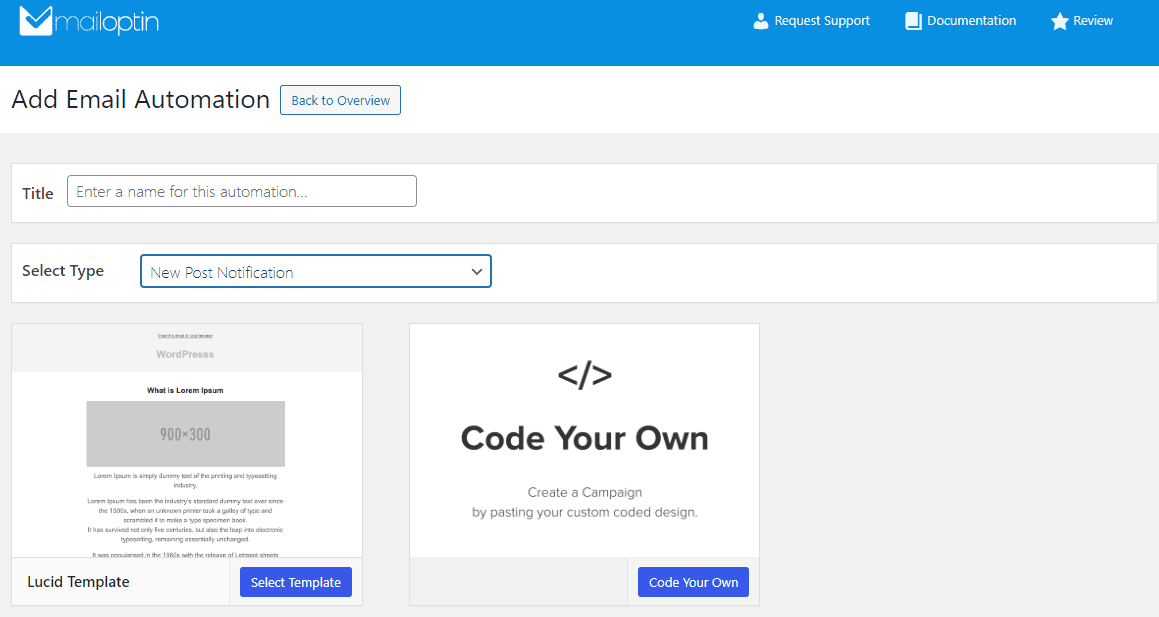
Enter your “Automation Title” and “Select Automation Type”> “New Post Notification”> Select Template.
Here’s how to use your own custom email template.
After selecting your template, you will be taken to the email customizer page, where you can configure the automation settings, template page, template header, template content, and even send a test email to your email address.
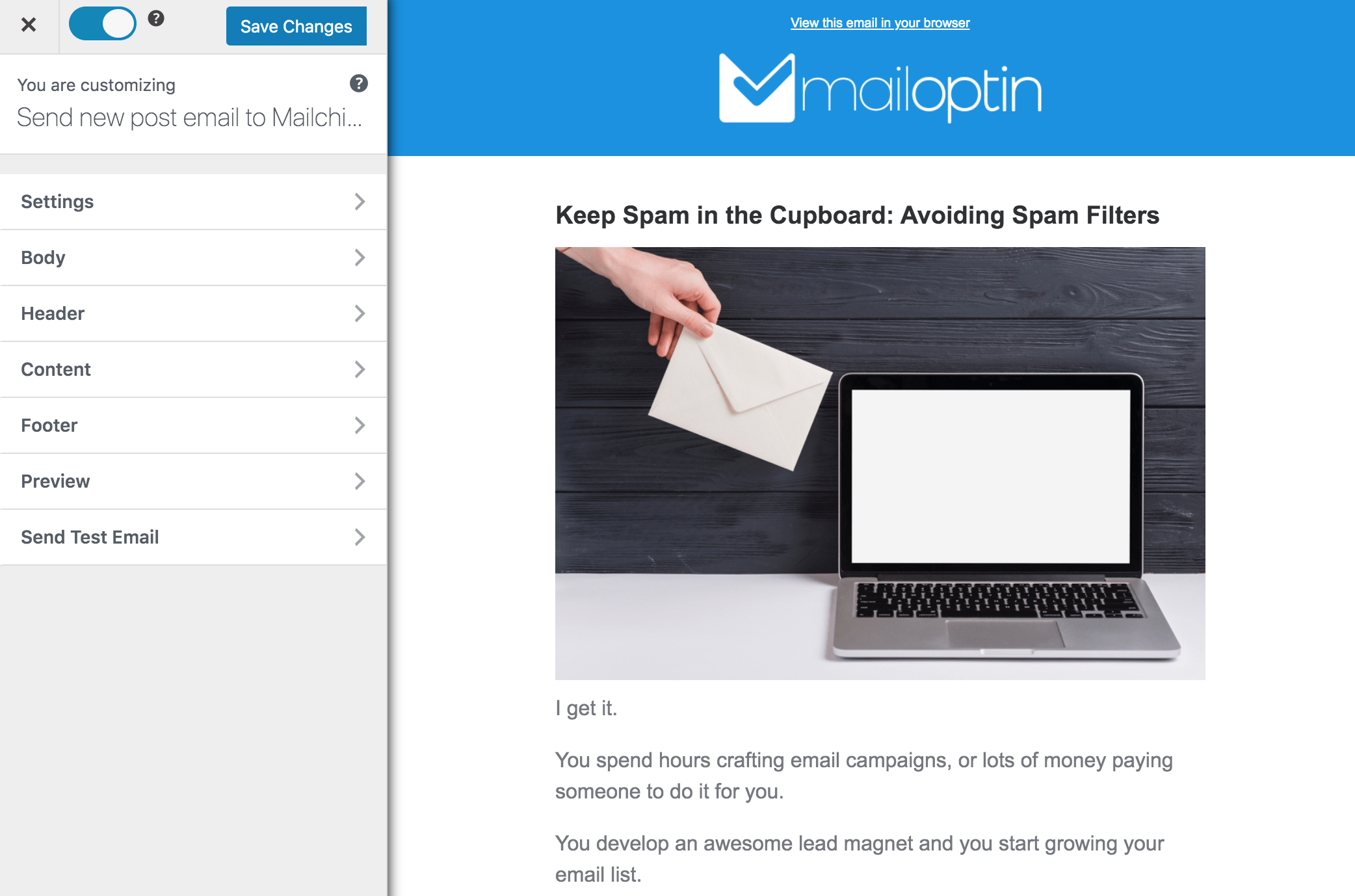
For this process to work without issues, open the “Settings” panel and select Sender as your connection.
Then, select a specific email list to which the new post newsletters will be sent. You can also decide to send the newsletters immediately after posting by checking “Send immediately” or scheduling it to be sent minutes, hours, or days after publication.

You can create as many email automations as you want to be sent to different Sender groups based on the categories and tags the post belongs to.
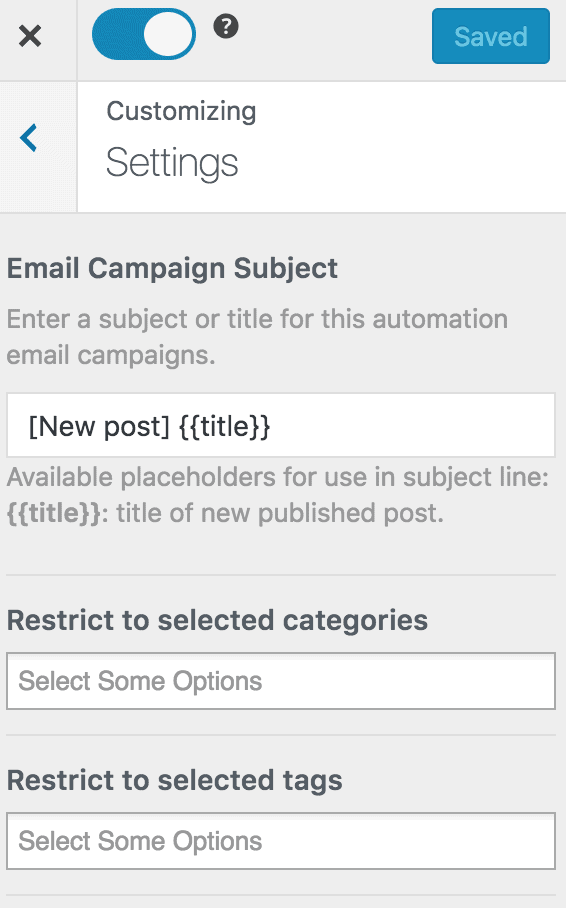
Once you have set up your new automation campaign, remember to activate it by clicking the activation switch at the top of the page.
Finally, click the Save Changes button to save your new automation campaign.

When MailOptin sends a new post newsletter to your marketing list or group, you will see the record in your Sender account.
Now that you’ve learned how to set up WordPress post notifications to Sender.net using MailOptin, it’s time to put this knowledge into action and enhance your content distribution strategy. This process will help you save time, increase engagement, and keep your audience coming back for more.
Follow the steps outlined in this guide to start sending automated emails of published WordPress posts to your Sender email list today. Your readers will appreciate staying informed, and you’ll benefit from increased traffic and engagement.
Let us know if you have any questions or comments.